Important Note
To resume trading after the maintenance, please ensure that you connect to the updated server by manually searching for it and logging in using your existing credentials.
If you download a new version of the trading platform or mobile app, the updated servers will be available by default.
Upon your first login after the update, you may be prompted to update your password.
If you do not wish to reinstall the platform, you can follow the steps below to manually add and connect to the updated server.
💻 MT5 Login Instructions – PC (Windows/Mac)
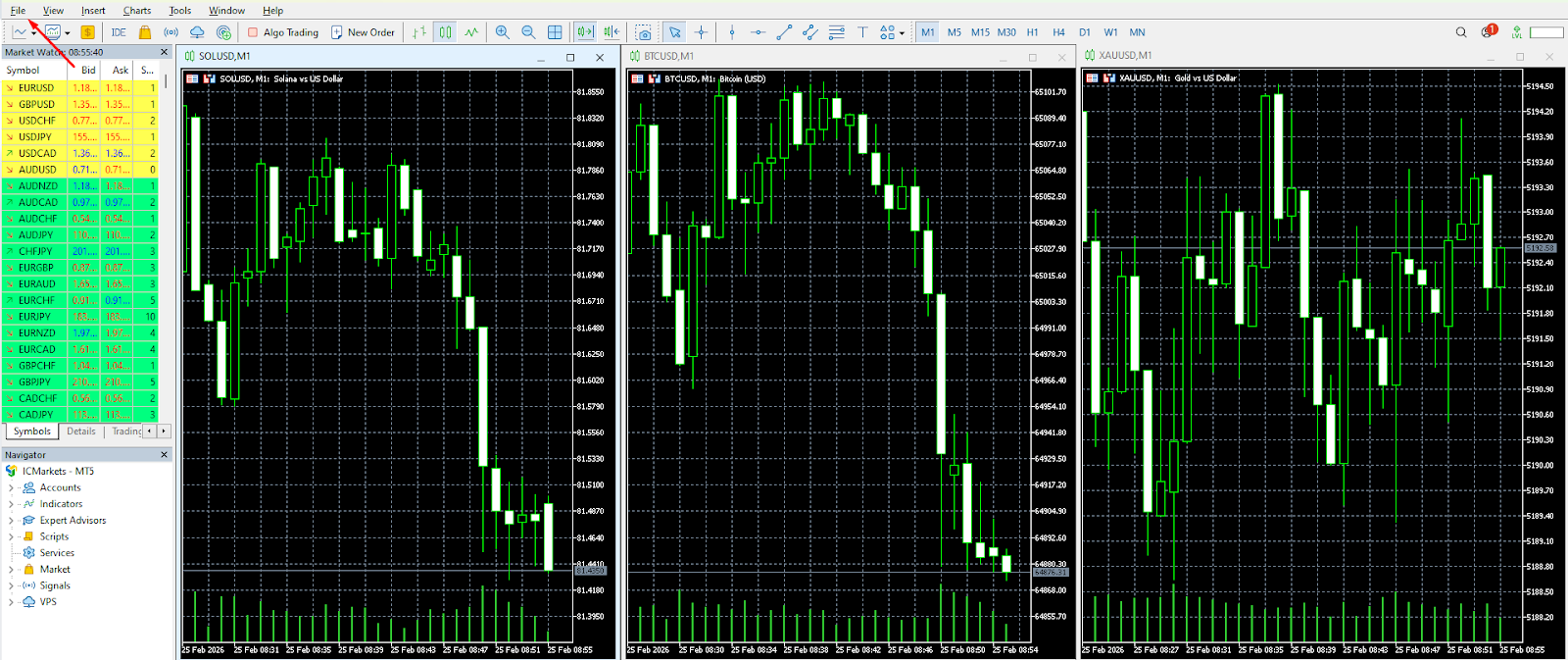
- Open the MT5 platform on your device.
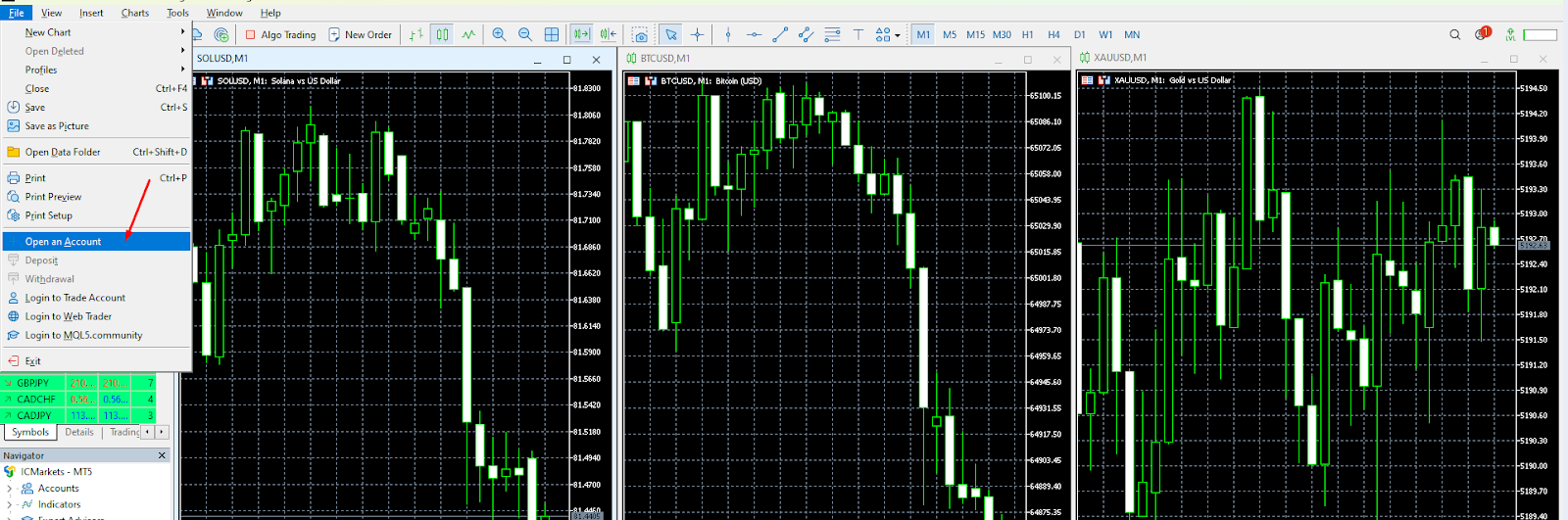
- Navigate to the File tab in menu ( top-left corner ).
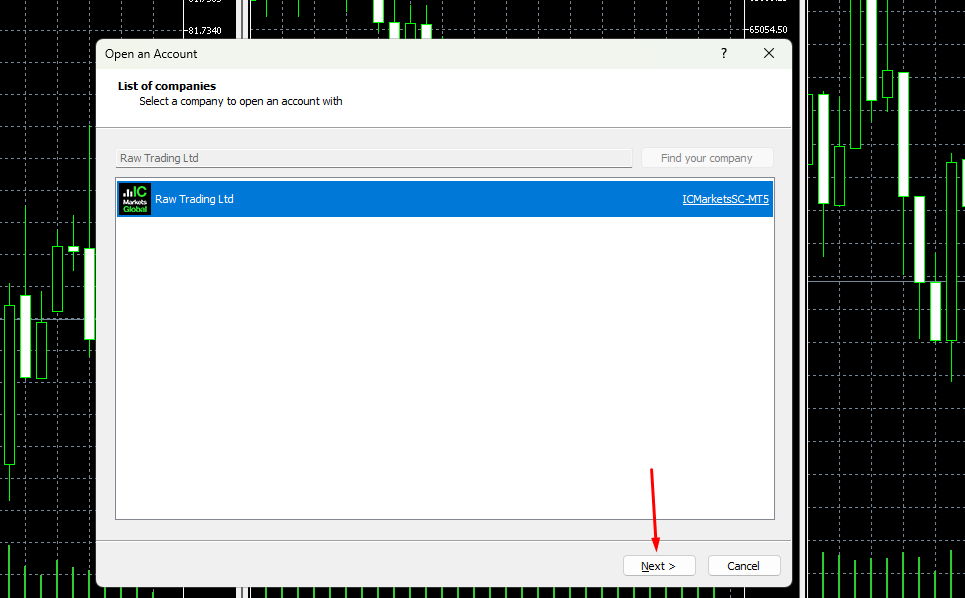
- Select Open an Account.
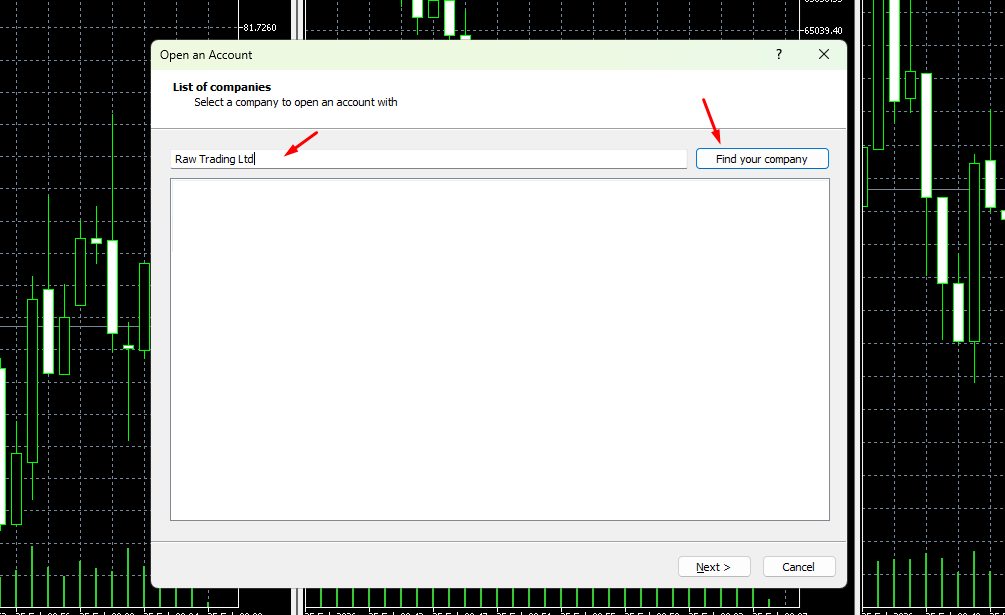
- In the search bar, re-type: “Raw Trading Ltd” press Enter then Next.
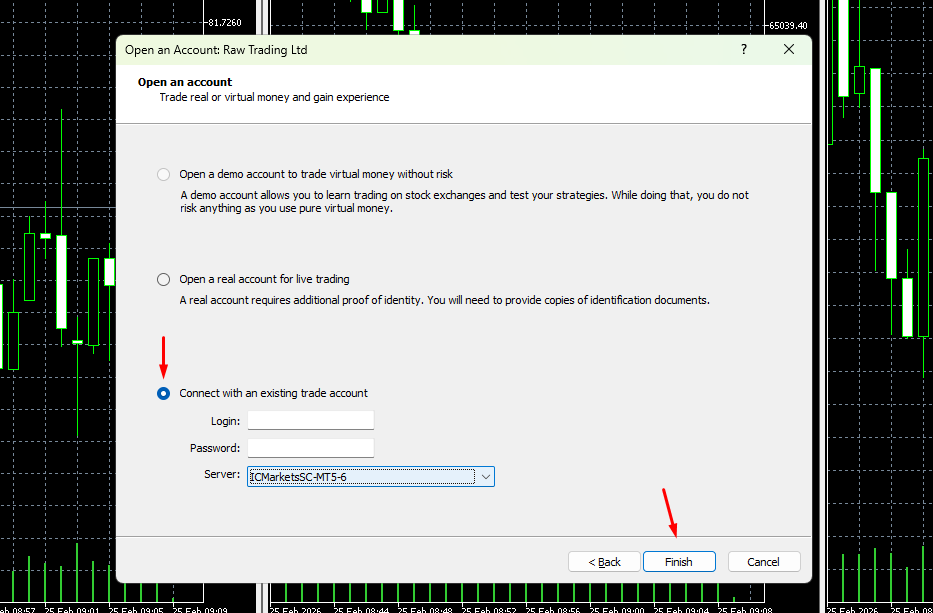
- Select Connect with an Existing trade Account.
- Select ICMarketsSC-MT5-6
- Enter your Login ID and Password.
- Click Finish to complete the login process.
- The platform will prompt you to update your password.
📱MT5 Login Instructions – Mobile iOS (iPhone / iPad)
- Open the MetaTrader 5 (MT5) app.
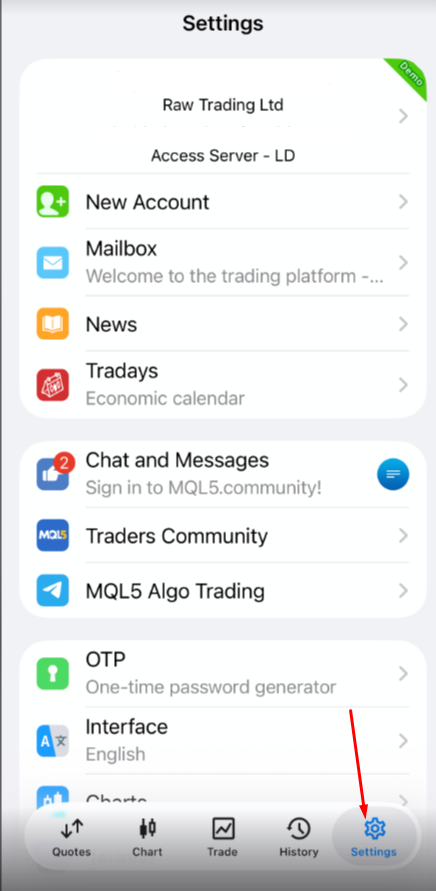
- Select the Settings icon (bottom-right corner).
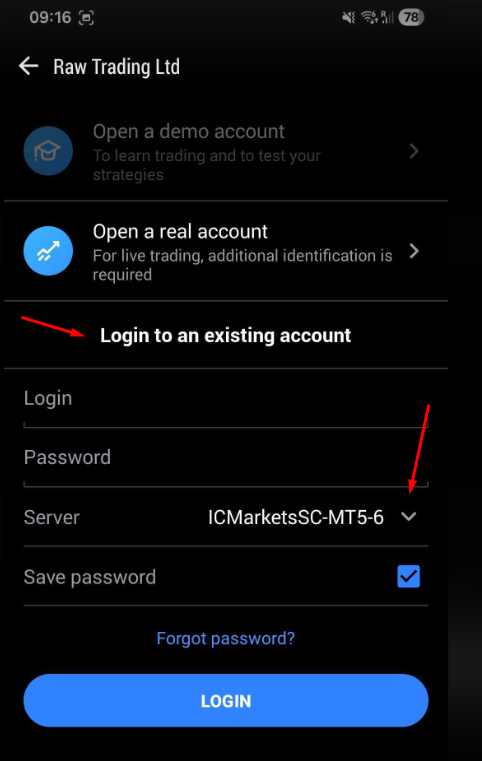
- Select Login to an existing account.
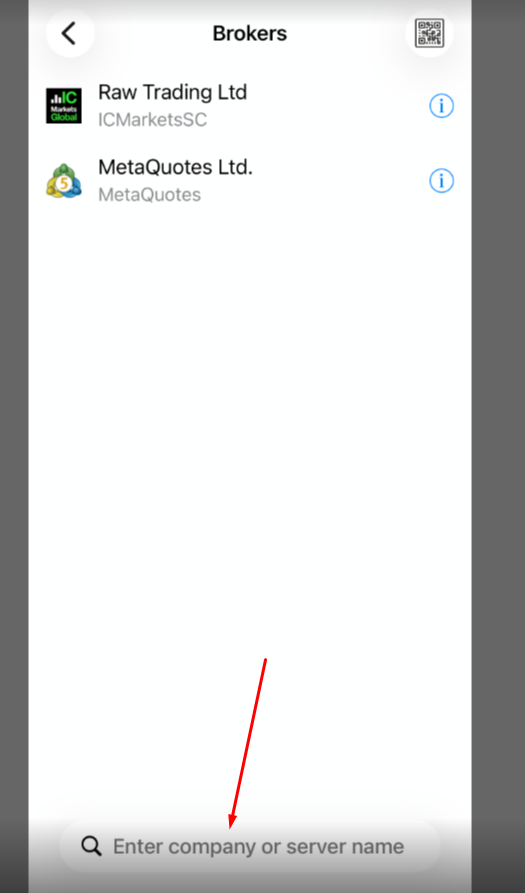
- In the search field at the bottom, ‘Find your Broker’, re-type: Raw Trading Ltd
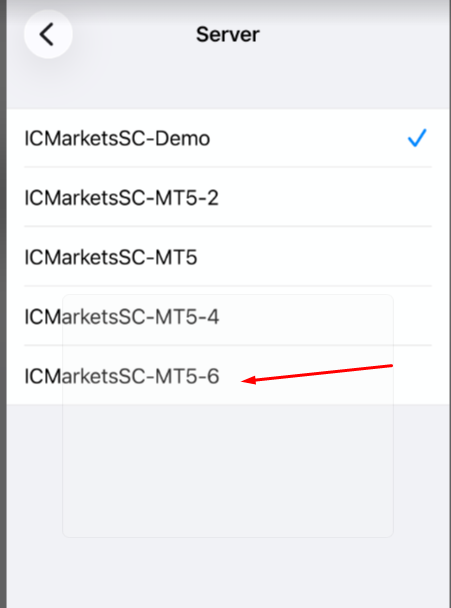
- Select the server ICMarketsSC-MT5-6
- Enter your Login ID and Password.
- Tap Sign In.
- The app will prompt you to update your password.
MT5 Login Steps – Android
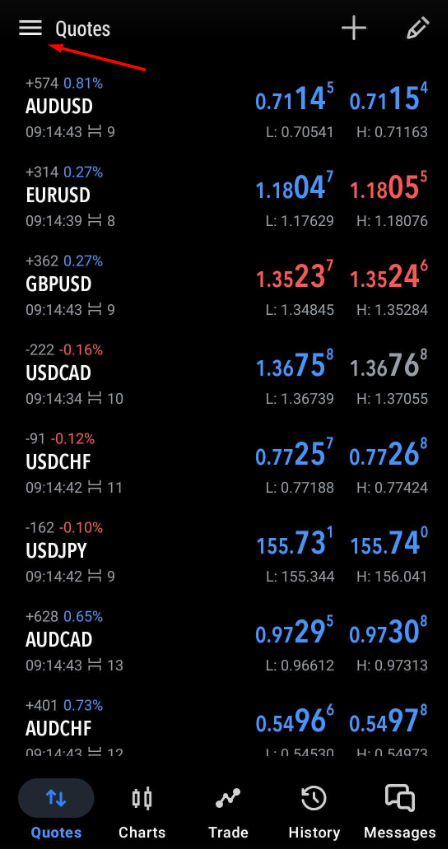
- Open the MetaTrader 5 (MT5) app.
- Tap the menu icon (☰) in the top-left corner.
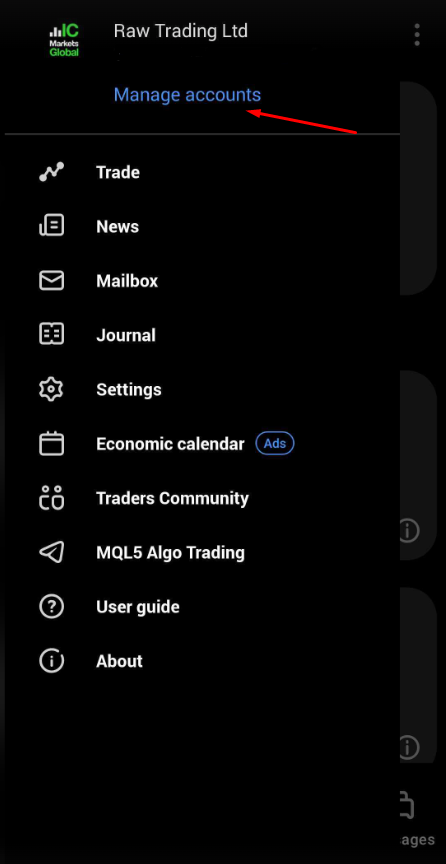
- Select Manage Accounts.
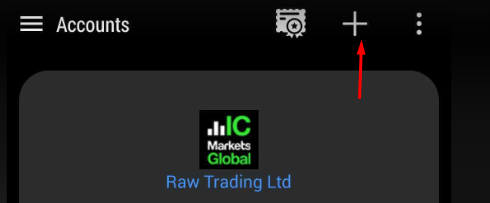
- Tap the + icon (top-right).
- Select Login to an existing account.
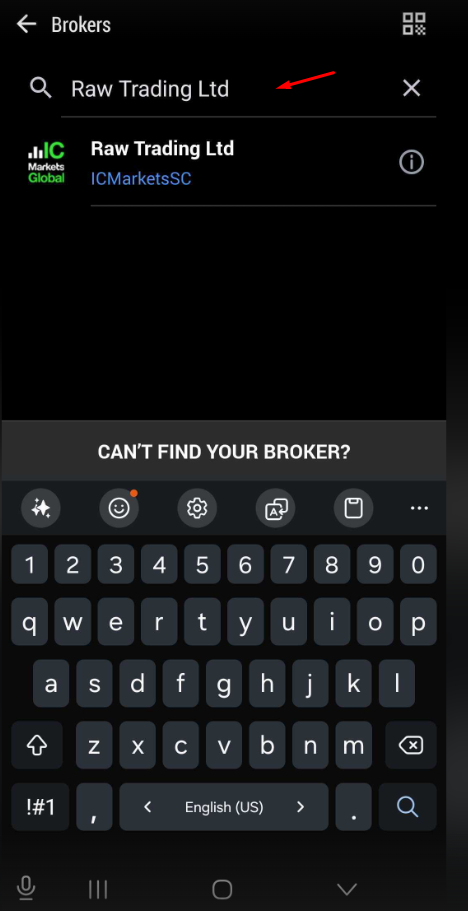
- In the search field ‘Find your Broker’, re-type: Raw Trading Ltd
- Select the correct server ICMarketsSC-MT5-6
- Enter your Login ID and Password.
- Tap Sign In.
- The app will prompt you to update your password.